Factory Reset
Factory Reset
Before You Begin
Before performing a factory reset, please ensure you have:
- Your sense band
- Your sense band charging cable
- Access to your mobile device (Android or iOS)
- A pin, small screwdriver or SIM card removal tool.
- The sense app installed on your device
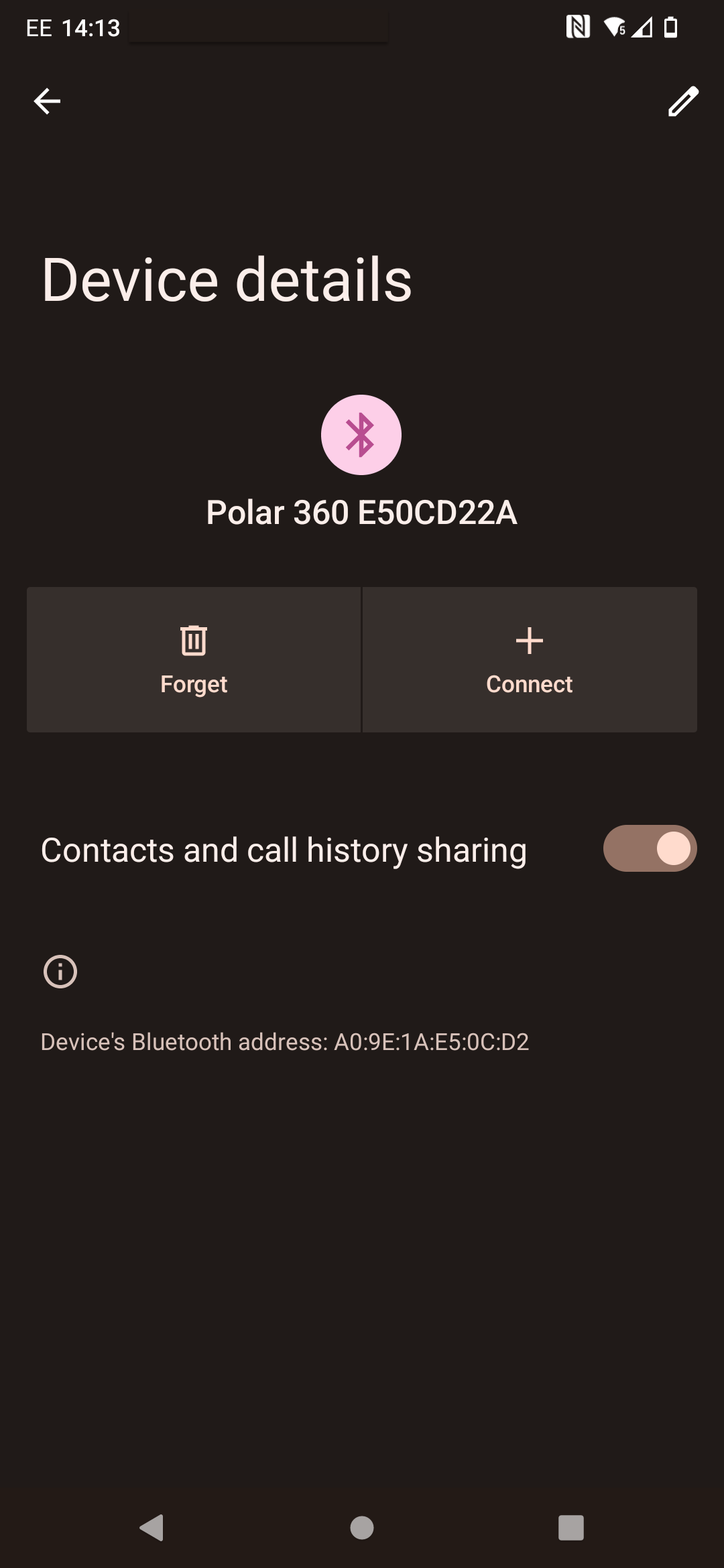
Removing from Bluetooth Devices
Android Devices
- Open your Android device’s Settings
- Navigate to “Connected devices” or “Bluetooth”
- Find “Polar 360” in your list of paired devices
- Tap the gear icon or settings next to the device
- Select “Forget”
- Confirm the action when prompted
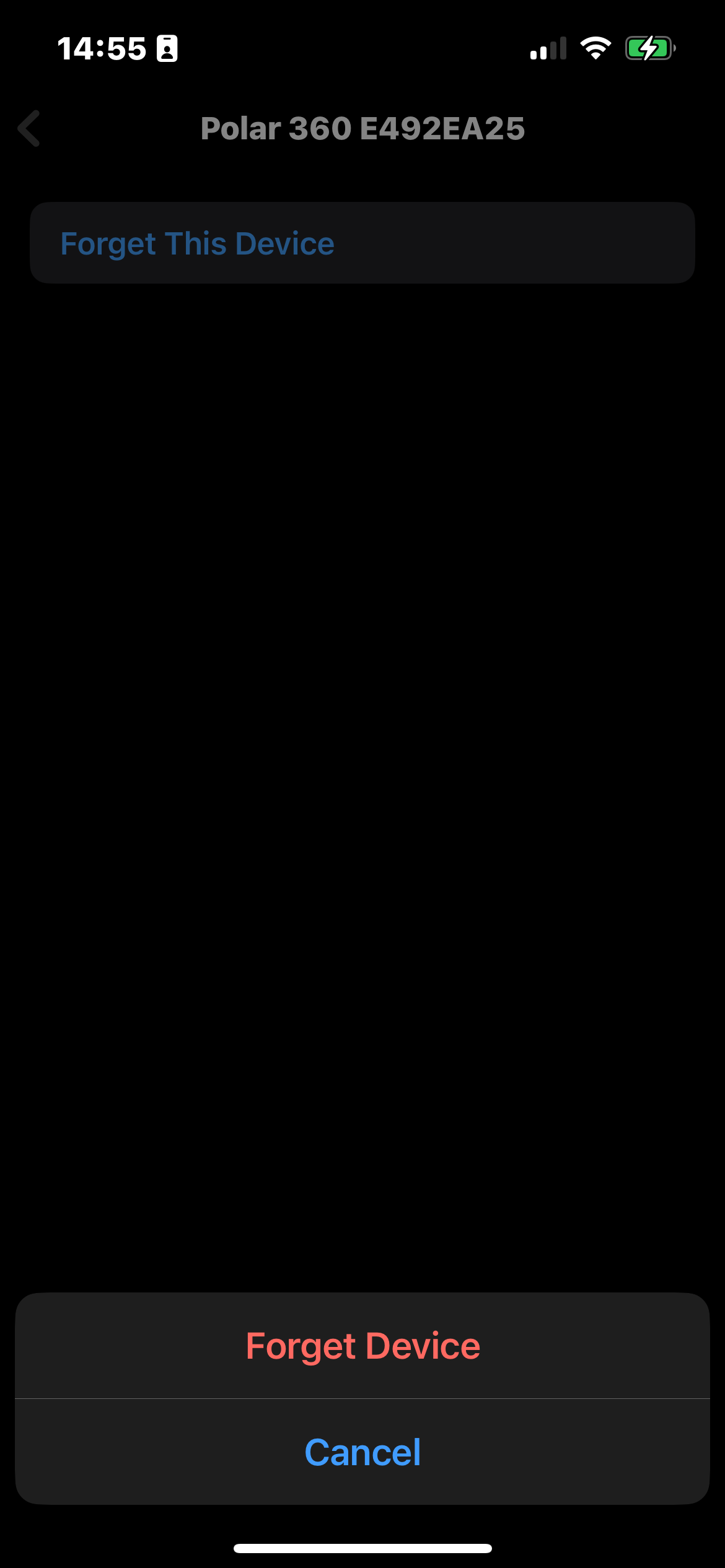
iOS Devices
- Open your iPhone’s Settings
- Tap on “Bluetooth”
- Find “Polar 360” in your list of paired devices
- Tap the (i) icon next to the device
- Select “Forget This Device”
- Confirm the action when prompted
Close the Sense App
Android Devices
- Open your Android device’s Settings
- Navigate to “Apps” or “Applications”
- Find and tap on “Sense”
- Tap “Force Stop”
- Confirm the action when prompted
iOS Devices
- Swipe up from the bottom of the screen (or double-click the home button on older devices)
- Find the Sense app in the app switcher
- Swipe up on the Sense app card to close it
- Alternatively, you can also:
- Open Settings
- Scroll down to find “Sense”
- Tap “Background App Refresh”
- Toggle it off temporarily
Performing the Factory Reset
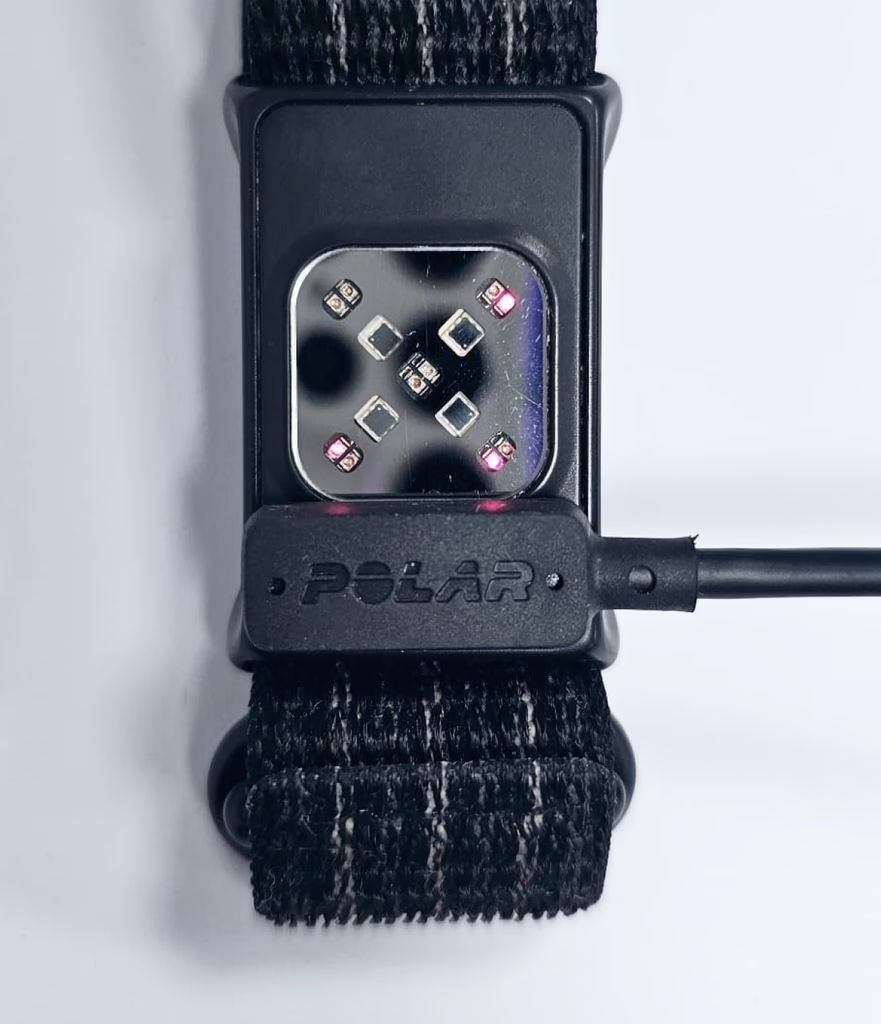
- Connect your Polar 360 to a charger (must stay connected to perform reset)
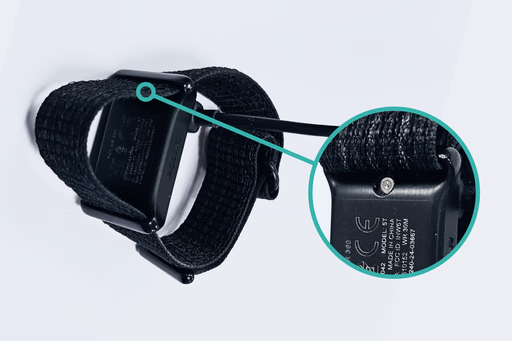
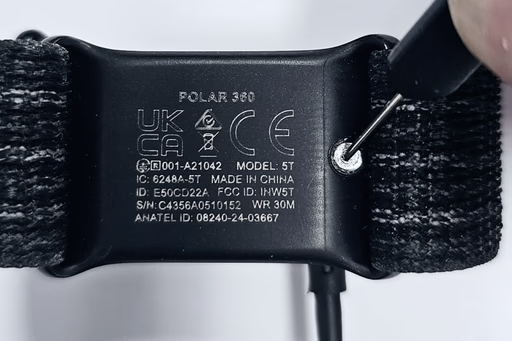
- Loosen the Polar 360 strap away from the top of the main device
- Locate the reset button at the top of the Polar 360
- Take a pin and push the reset button making sure the charger stays connected
- The red LEDs will briefly turn off and on again and start spinning
- Wait 10 seconds before disconnecting the charger
- The Polar 360 has now been factory reset
After Reset
After the factory reset:
- The band will be ready for a new pairing
- All previous settings and data will be cleared
- You’ll need to pair the band again with your device
- Follow the initial setup process in the Sense app
Troubleshooting
If you experience any issues during the reset process:
- Ensure the band has sufficient battery power
- Try the reset process again if the first attempt fails
- If problems persist, contact Sense support for assistance
Need Help?
If you need additional assistance, please contact our support team through the Sense app or visit our support page.